The Ultimate Dark Aesthetic iPhone Customization Guide: Clean, Minimalist, and Functional
If you are tired of chaotic home screens overflowing with random app icons and distracting red notification badges, you are not alone. The trend toward intentional, distraction-free phone setups has taken over mobile customization, proving that less is genuinely more.
The best part? You don't need a jailbroken device or third-party launcher apps to pull this off. Built-in iOS features make achieving a sleek, professional dark aesthetic simple.
Step 1: Establish the Foundation with a True Black Wallpaper
The cornerstone of any dark aesthetic setup is a deep, immersive background that makes your icons pop while saving battery on OLED displays.
- Head to Settings > Wallpaper and tap Add New Wallpaper.
- Select the Color option at the top and choose solid black.
- Swipe left to find the Vibrant option style.
- Drag the bottom-left corner of the clock down as far as it will go for a clean, minimalist layout. Save and apply it.
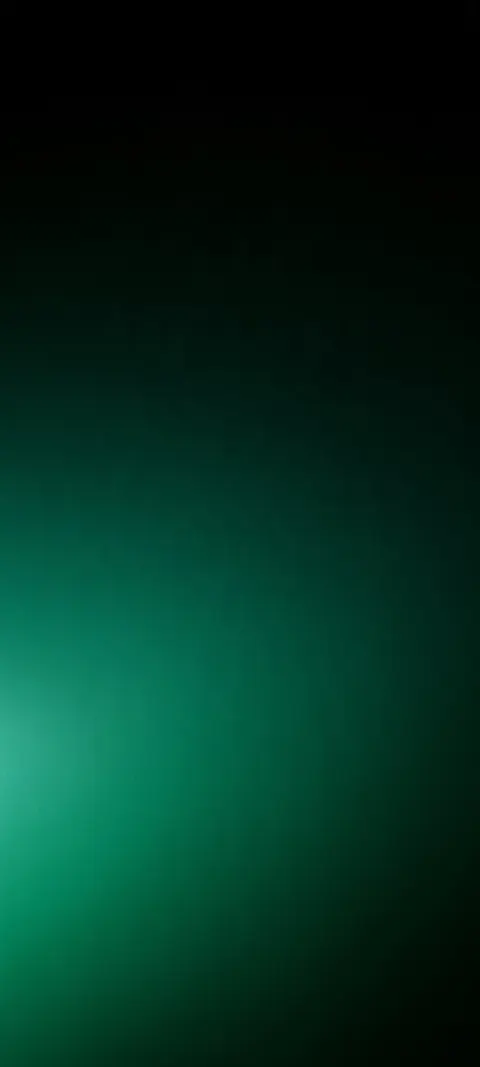
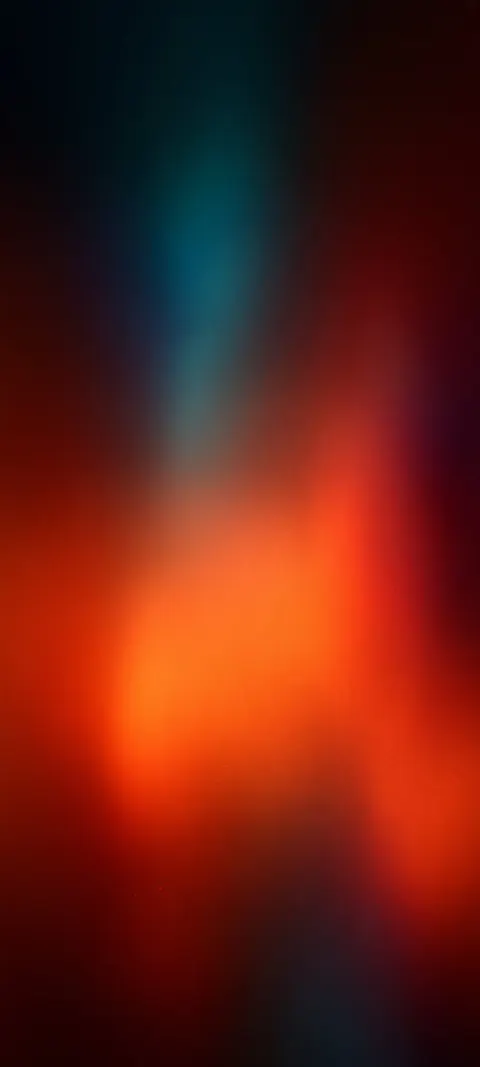
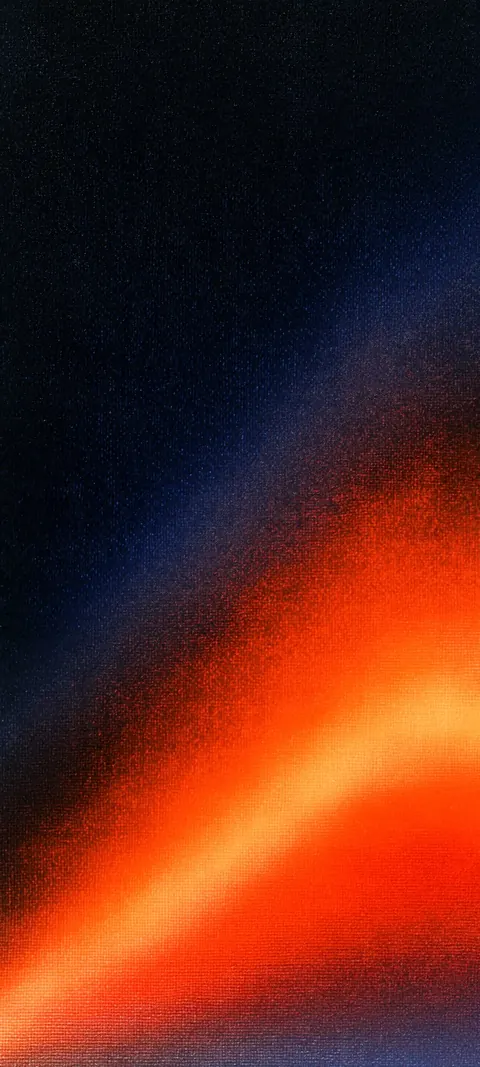
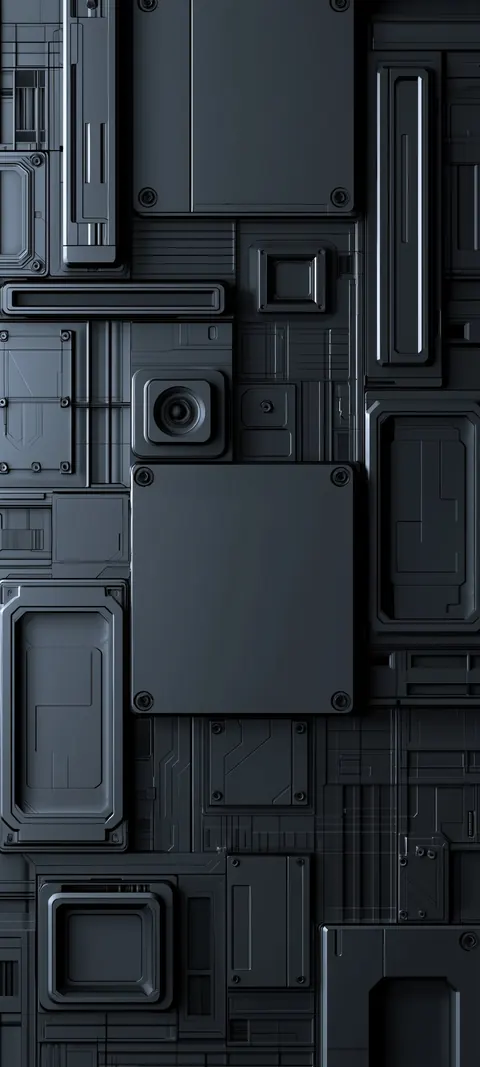
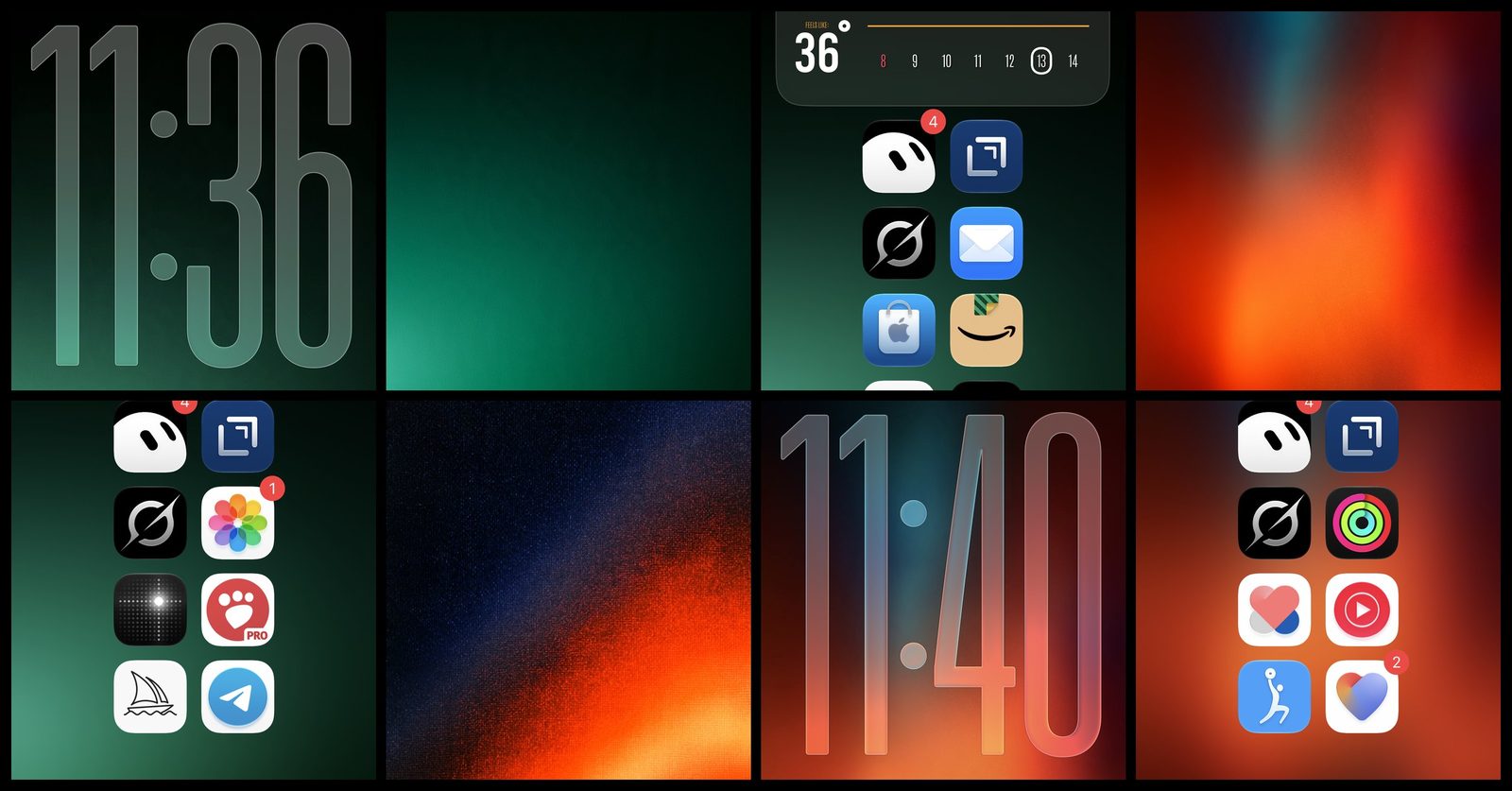
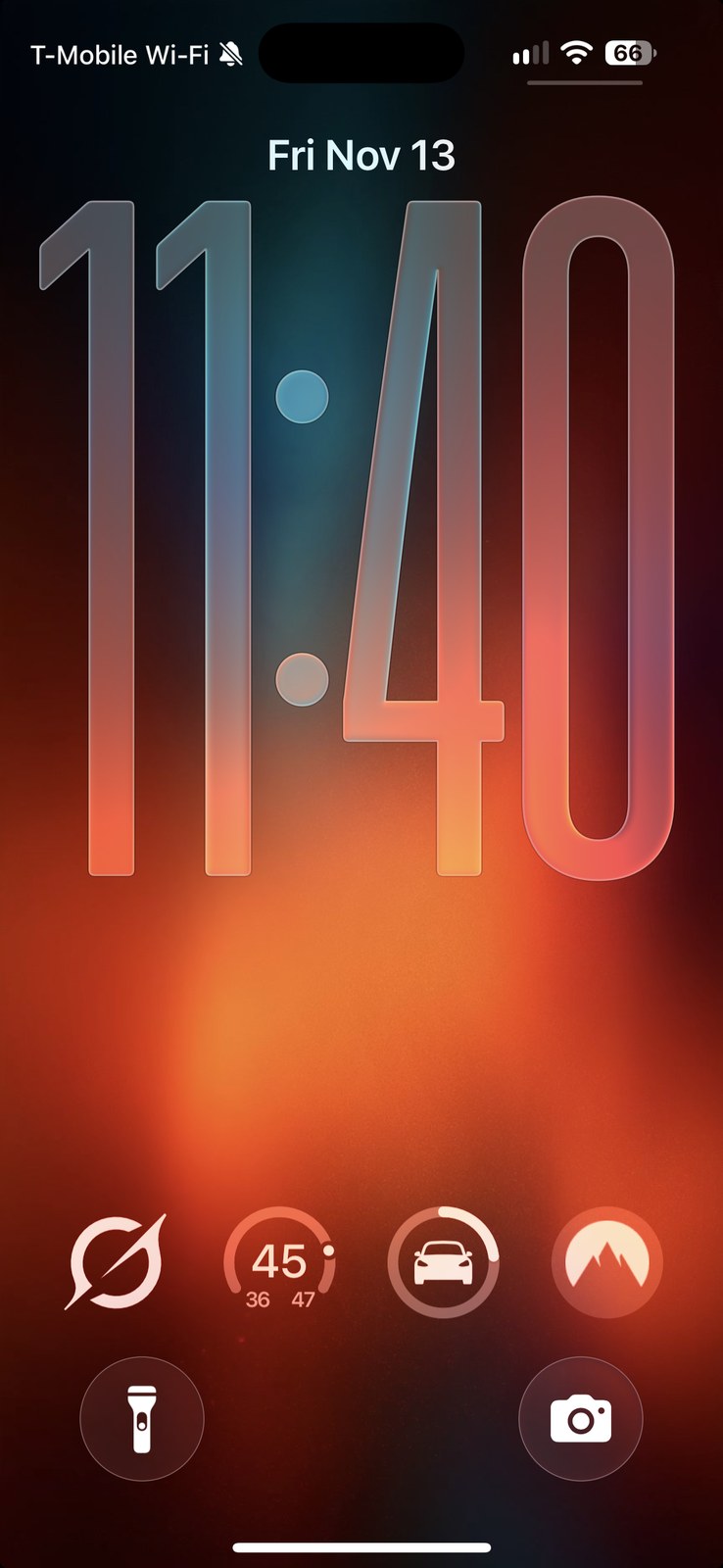
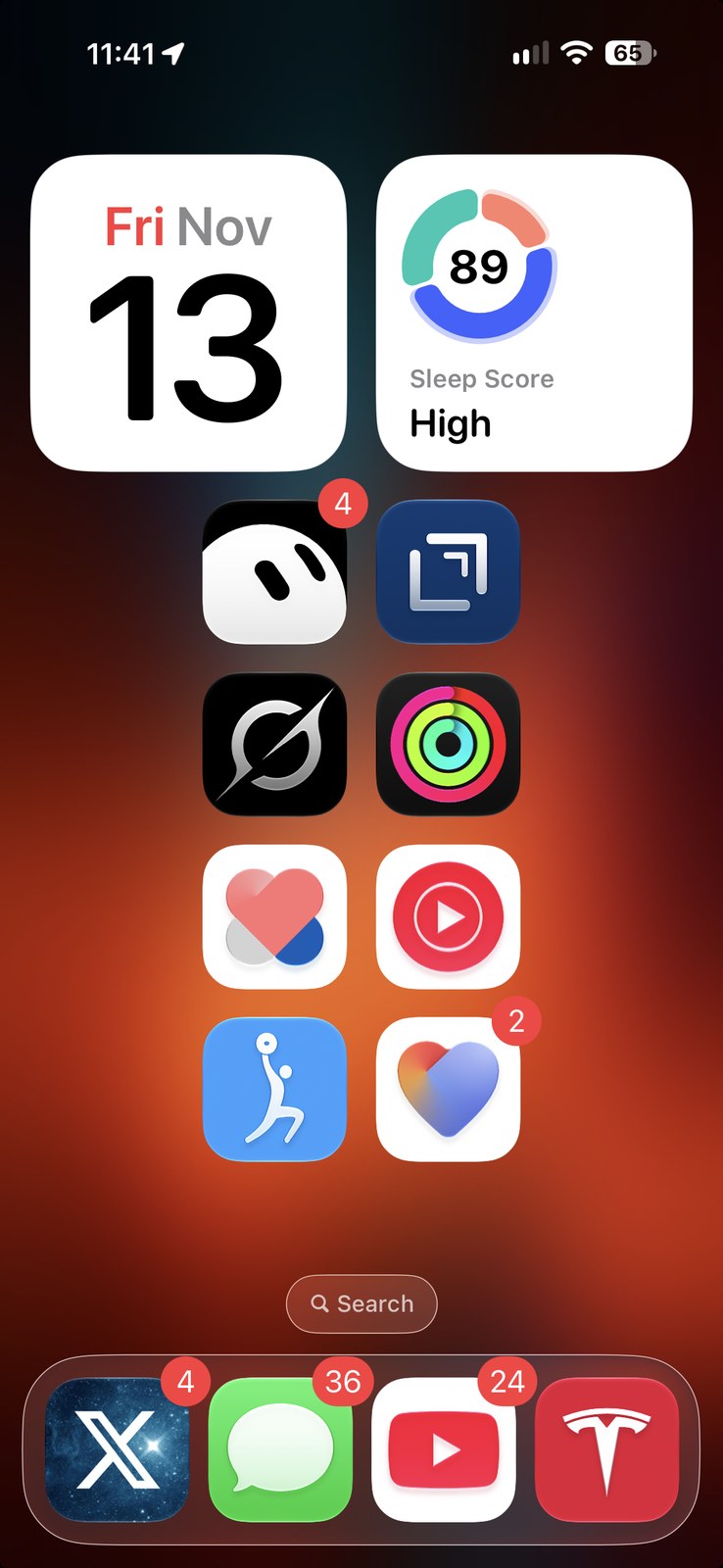
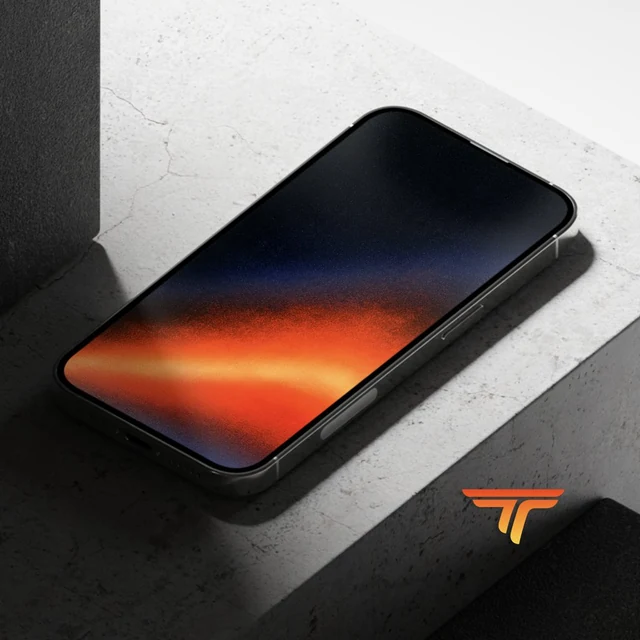
If a solid black field feels too bare, these dark wallpapers from Time Travel Walls keep a deep, OLED-friendly background and leave room for your icons and widgets.

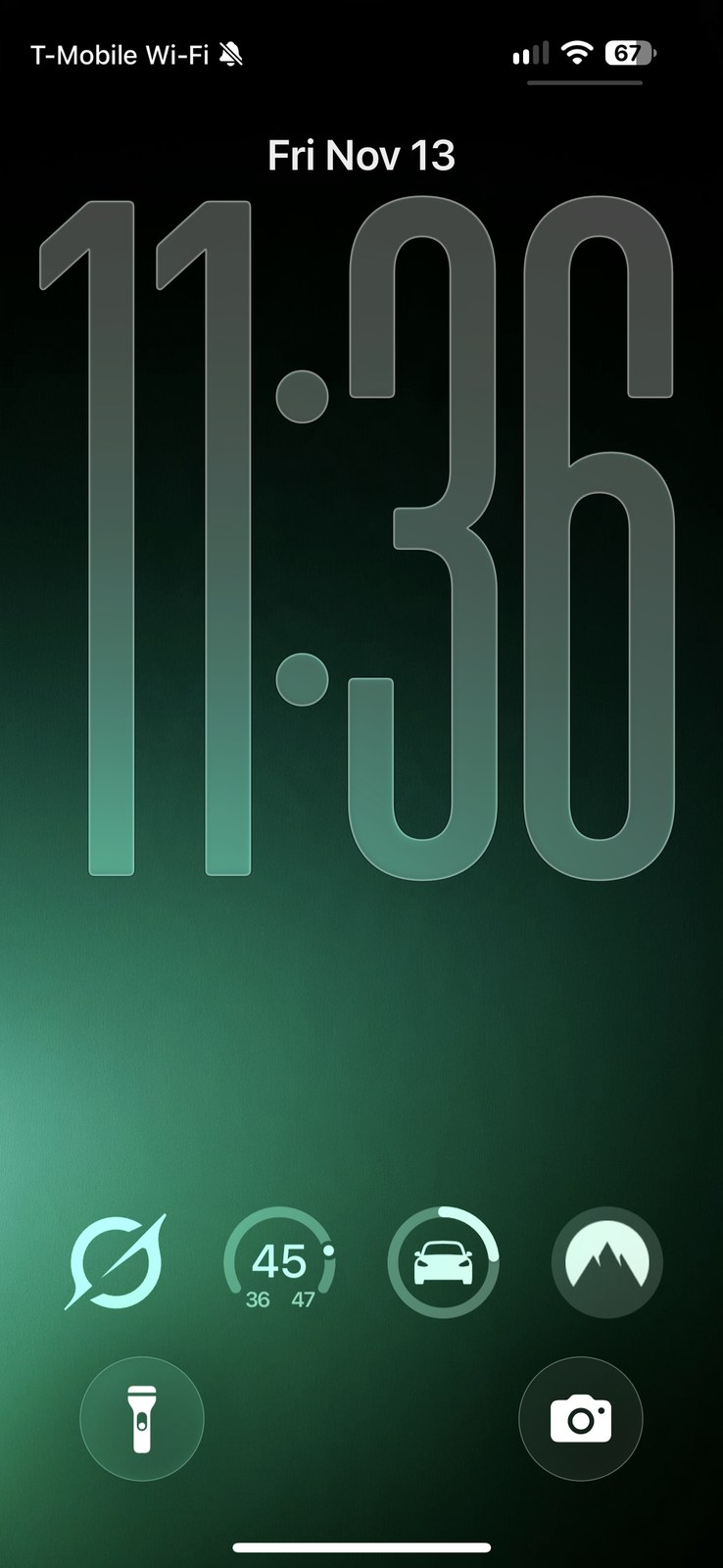
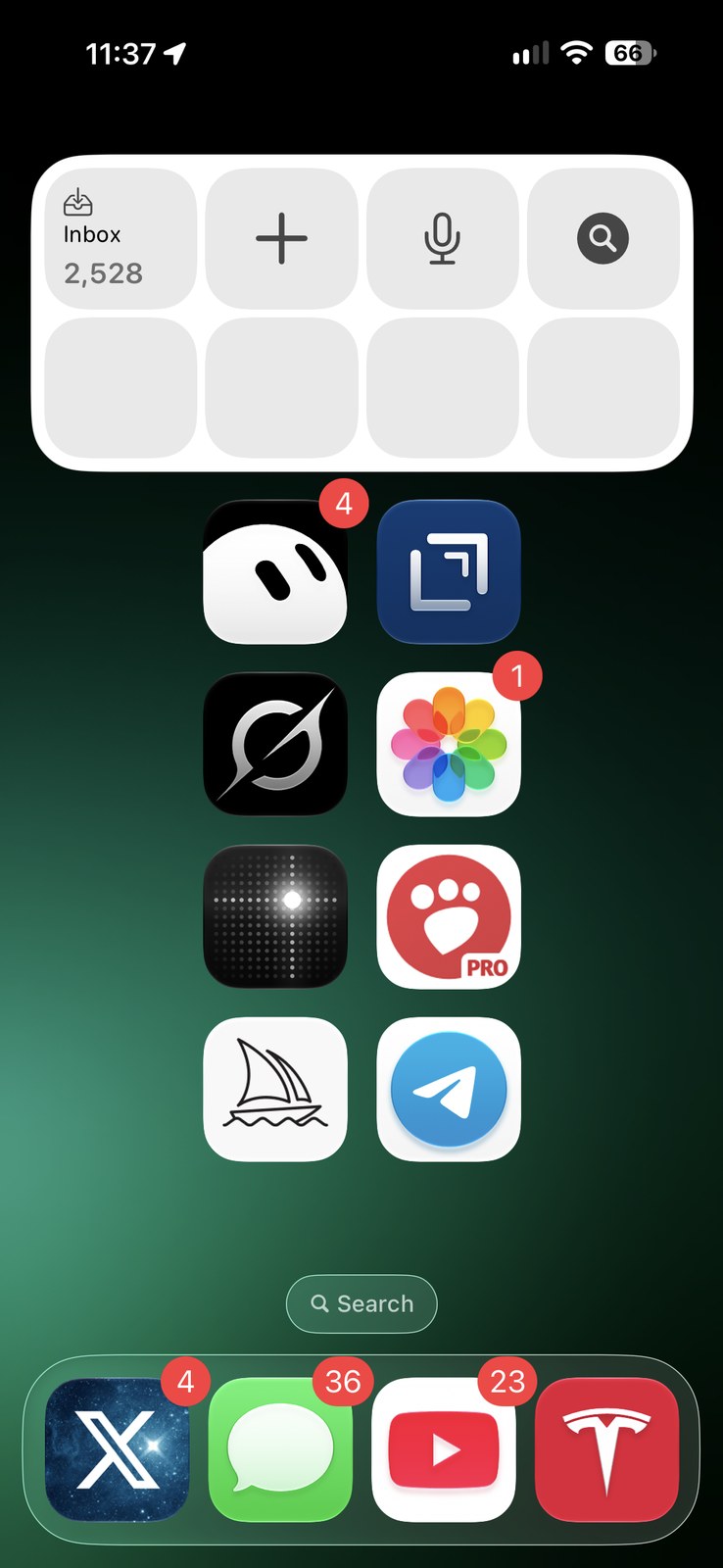
On a real iPhone: lock screen and home screens with Emerald Shadow Fade
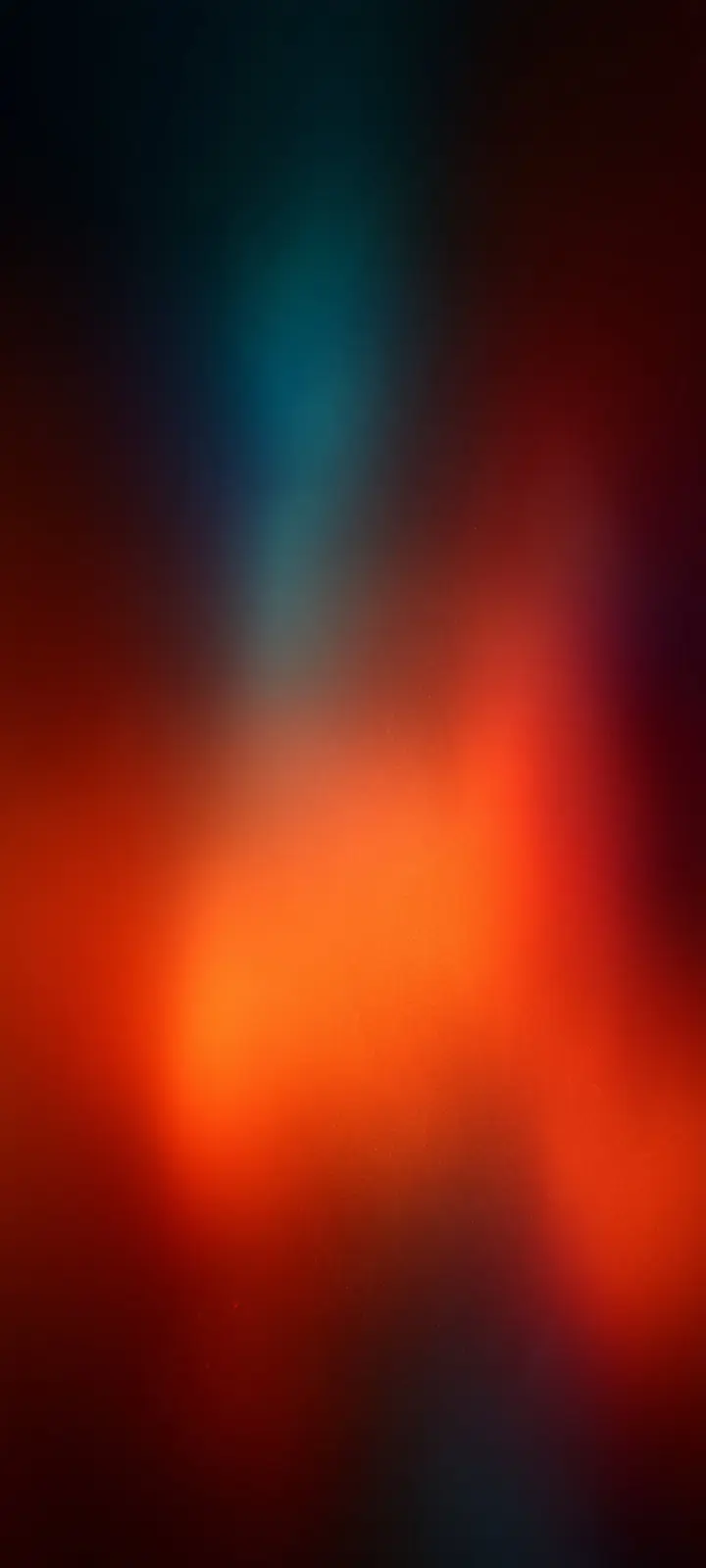
Ember Aurora Mist — a quiet glow that sits softly behind app icons.
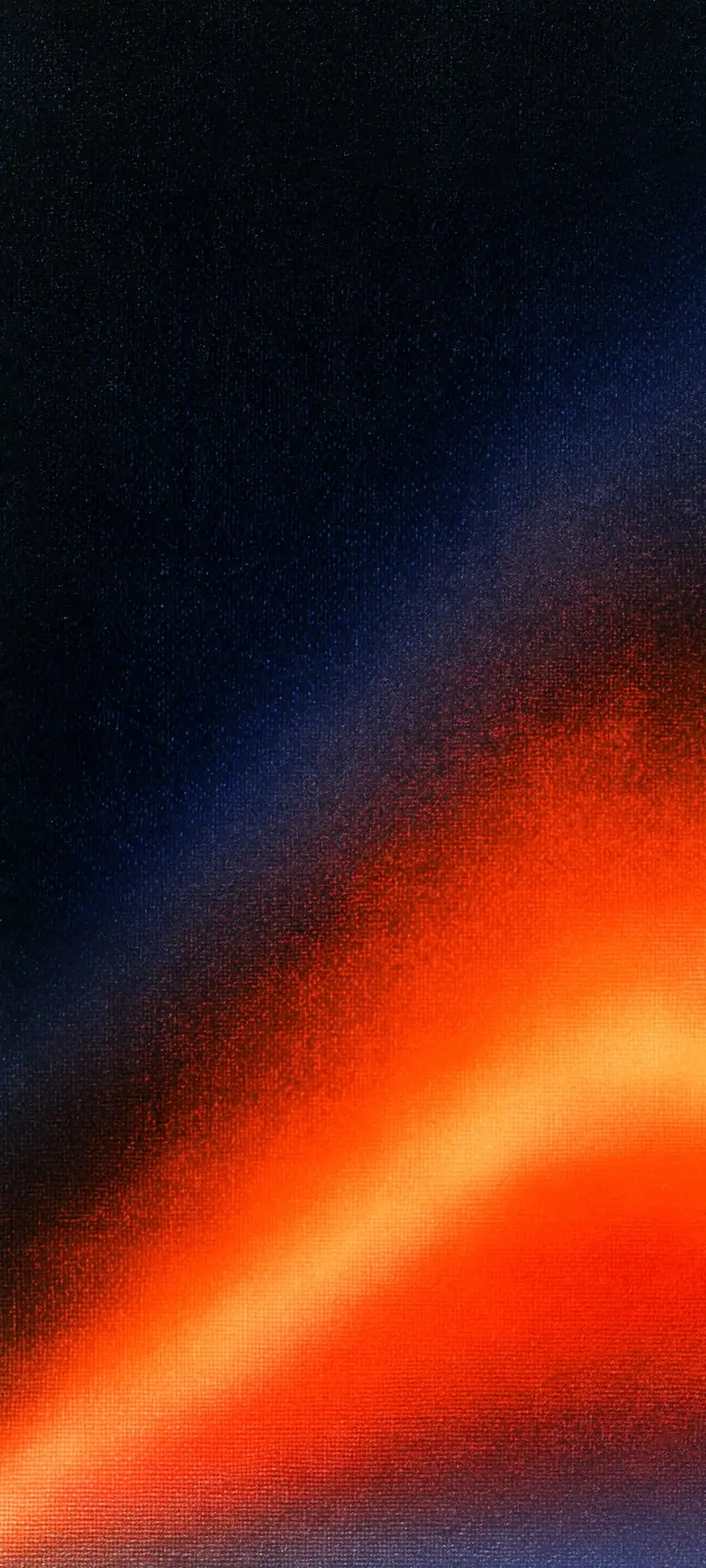
Molten Corner Glow — the upper half stays almost empty, so the time and widgets stay easy to read.
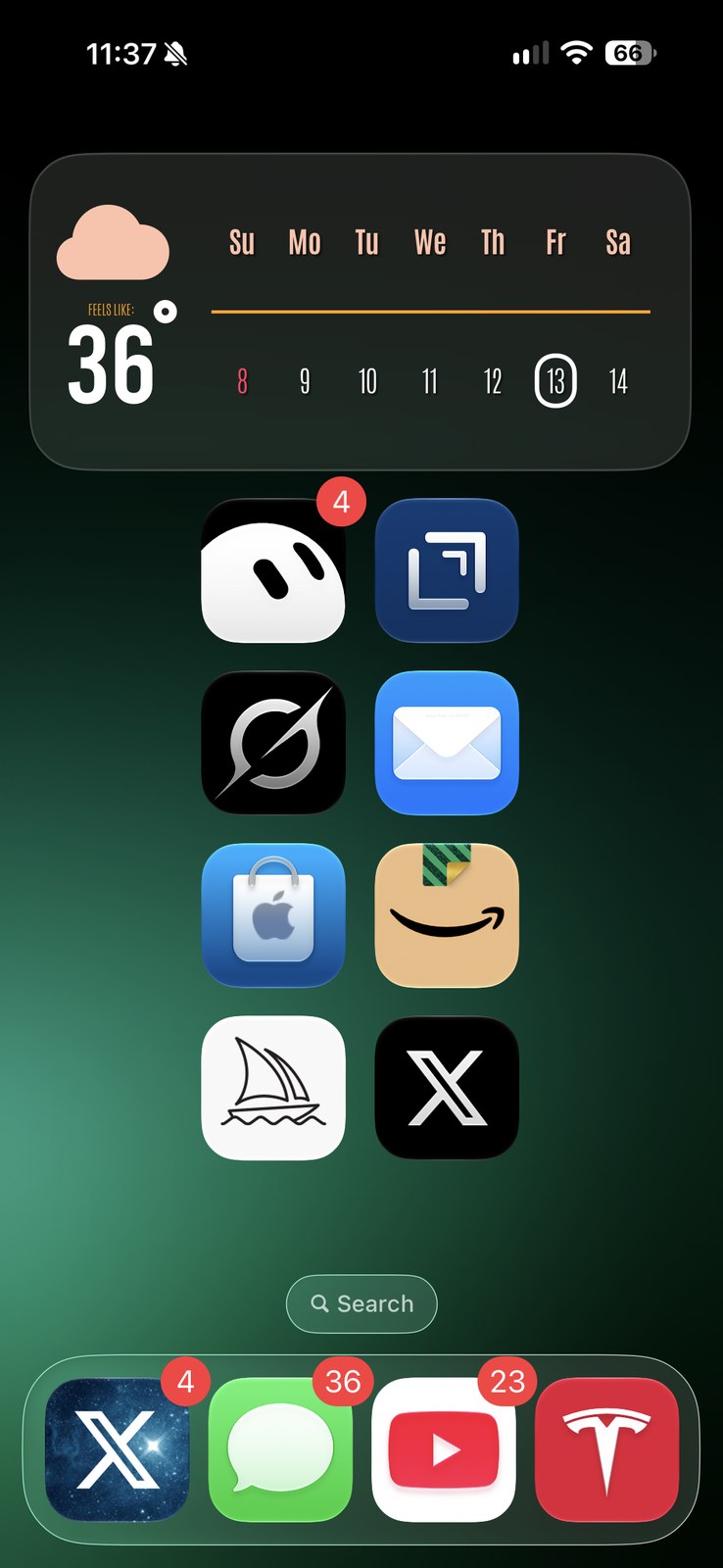
The same wallpapers on a phone lock screen:
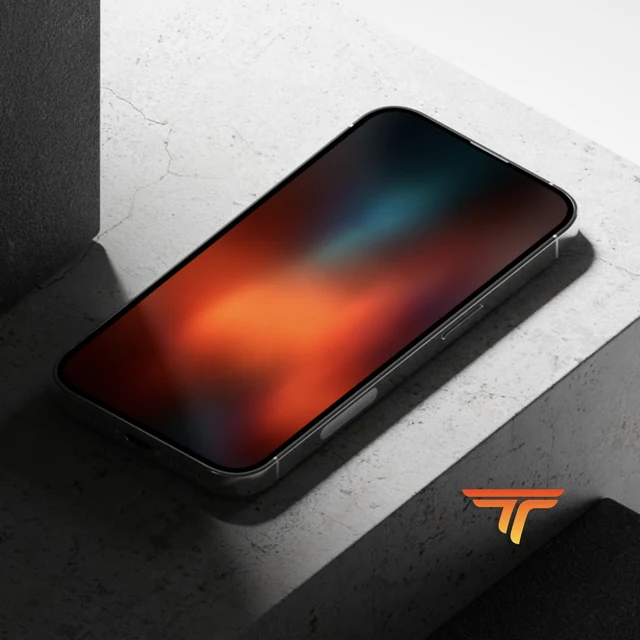
On a real iPhone: lock screen and home screen with Ember Aurora Mist
Step 2: Clear Visual Noise by Banishing Notification Badges
Nothing ruins a pristine dark theme faster than aggressive red notification dots screaming for your attention.
- Navigate to Settings > Notifications.
- Go through your apps one by one and disable badges for anything that isn't a direct communication tool (like messaging apps).
- Keep badges off for endless-scroll social media feeds, news apps, and entertainment platforms. Your home screen—and your mental health—will thank you.
Step 3: Switch to Large, Dark App Icons
iOS lets you upscale your app icons to a larger format without text labels, giving your screen an ultra-modern look.
- Press and hold any blank area on your home screen until the apps begin to jiggle.
- Tap Edit in the top-left corner, then select Customize.
- Choose the Large icon view to remove text labels and give your apps a premium presence.
- Ensure the Dark appearance toggle is selected so iOS automatically tints your icons to match your theme.
Step 4: Curate Your Single Home Screen Page
The secret to a minimal setup is embracing the App Library. Instead of scattering 50 apps across five pages, restrict yourself to a single home page holding your 12 absolute essentials.
- Create a blank home screen page.
- Drag your core 12 apps out of the App Library and onto this single page.
- Arrange them in a clean border or frame around the edges.
To hide your old cluttered pages, long-press the home screen, tap the page dots at the bottom, and uncheck every page except your new custom layout.
Step 5: Add Intentional Widgets
Keep widgets functional rather than decorative. A single rectangular calendar or weather widget breaks up the solid black canvas while adding a subtle splash of color. Long-press your home screen, tap the + icon in the top left, select your widget, and anchor it right in the center of your layout.
Master the Workflow: App Library & Spotlight Search
With a single home screen, how do you find everything else? Two built-in iOS tools do the heavy lifting:
- The App Library: Swipe all the way to the right. iOS automatically categorizes your remaining apps (Social, Productivity, Utilities) so they are always neatly tucked away.
- Spotlight Search: Swipe down anywhere on your home screen and type the first couple of letters of any app to launch it instantly—often faster than digging through folders.
Give your iPhone the ultimate dark mode makeover today and enjoy a faster, cleaner, distraction-free mobile experience!
More dark wallpapers for your phone
A few more dark, low-glare options from the mobile gallery: